More Tab / Remote Control
Remote Control lets a second phone manage the scoreboard, events, and messages while the Broadcaster streams.
Prepare the Broadcaster
- In Go Live, advance to the Remote Devices step (step 5 of 7).
- Optionally, give the Broadcaster a recognizable device name (for example, “Jane’s Phone”).
- Check the Network connection indicator. When on WiFi the connection uses a faster network link; when not on WiFi it falls back to a local Bluetooth/peer connection automatically.
- If both devices are on the same WiFi but you want a purely local connection, use Local-only.
- Toggle Remote Control on.
- Share the four-digit PIN with the Remote Control.
- You do not need to wait for the Remote Control to connect; the Broadcaster will accept connections after it is enabled.
Connect the Remote Control
- Open the More tab and choose Remote Control.
- Optionally, edit the Remote Control device name.
- Tap Browse, wait for the Broadcaster device name to appear, then select it.
- Enter the PIN for the Camera and tap Connect.
- If the PIN is incorrect, you will see a rejection message — re-enter the correct PIN and try again.
- The status changes to “Waiting for Camera to start” once paired.
- Once the Broadcaster opens their Camera View, the Remote Control UI will appear.
Using the Remote Control
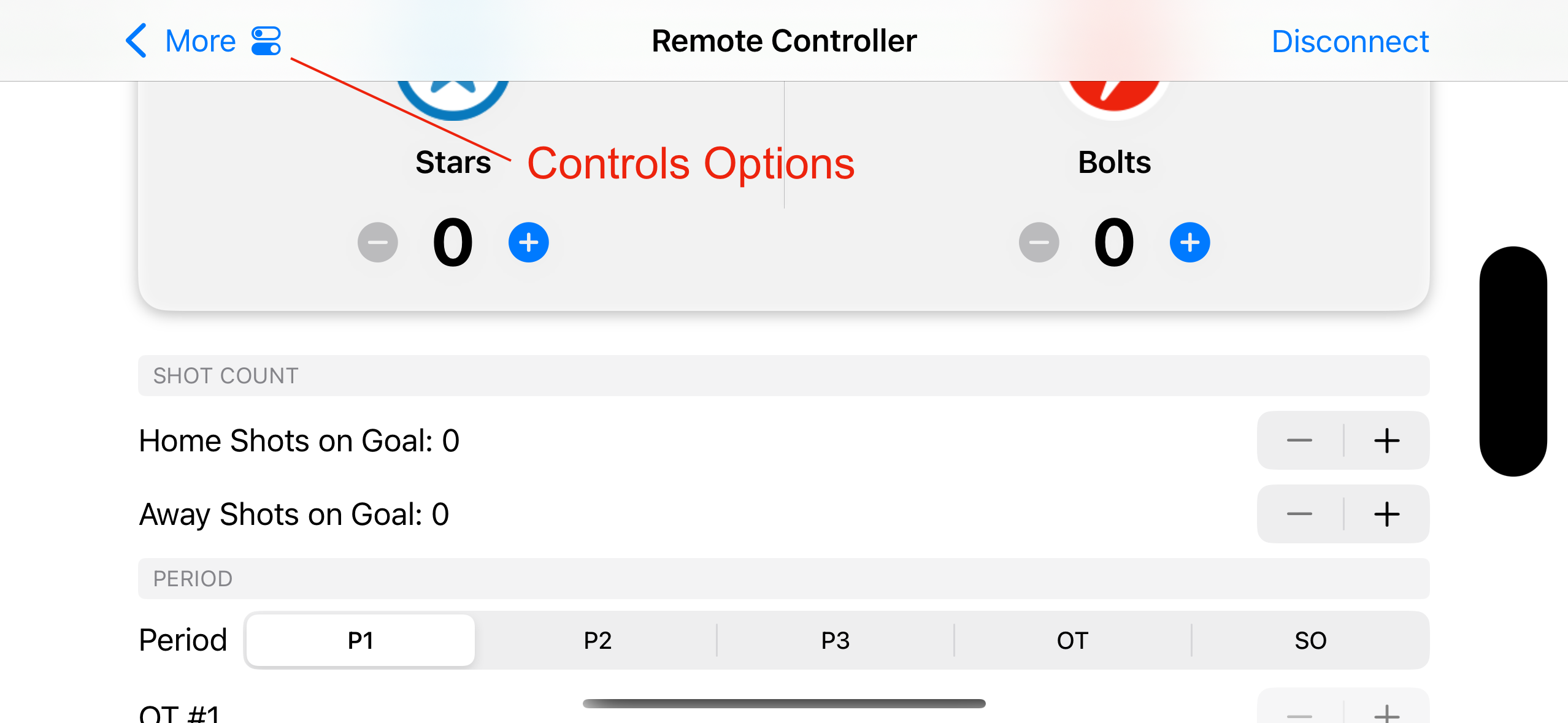
Use the Remote Control to control the ScoreBug, Events, and Messages on the Broadcaster.
Control Options
Tap the Control Options icon in the toolbar to adjust the scorebug, muted overlay, recording timer, and brand position from the Remote Control — the same settings available in the Broadcaster’s Control Options Panel.
Camera Status
Tap the info icon in the toolbar to see a snapshot of the Broadcaster’s diagnostics — the same data shown by the Broadcaster’s own Camera Status panel.
Taking Control Back for the Broadcaster
- Open the Remote Control panel from the bottom of the Camera View to see connection status, the PIN, and the connected device’s name.
- Use the Enable Remote Control toggle in that panel to bring control back to the Broadcaster without disconnecting the Remote Control.
Disconnecting and Reconnecting
- Tap Disconnect on the Remote Control to disconnect from the Broadcaster.
- The Broadcaster automatically disconnects the Remote Control when the Camera View is closed.
- If the link drops, the Broadcaster Camera View shows “Disconnected” next to the Remote Control toggle.
- If the link drops, the Remote Control returns to the connection screen. Re-enter the PIN and tap Connect.
Tips
- If you are using Local-only, you need to remain relatively close (up to 50 feet) to the broadcaster.
- You do not need a subscription to use MyTeamLive as a remote control.