Streaming & Remote Devices
MyTeamLive has three independent network choices: one for how Broadcaster sends the livestream to viewers, one for how the Broadcaster and Remote Control talk to each other, and one for how the Broadcaster and any Remote Cameras talk to each other. All are configured during the Go Live flow.
Streaming: How Your Video Reaches Viewers
Choose your streaming connection in the Network section on the Video Settings step (step 3).
Tap Speed Test in the Network section to measure your upload speed, latency, and jitter before going live. The test shows a streaming quality recommendation and can compare WiFi and cellular side-by-side when both are available.
WiFi
Streams over the venue’s WiFi network. This is the default when your device is connected to WiFi.
Use when: the venue has a reliable WiFi network with enough upload bandwidth. WiFi generally gives the most stable connection and the best picture quality.
Watch out for: crowded stadium or arena WiFi that drops under load. If the stream becomes unstable, switch to cellular.
Cellular
Streams over your carrier’s mobile data network. This is selected automatically when your device is not on WiFi. If you are on WiFi but want to use cellular instead, enable Force stream to Cellular Network in the Network section.
Use when: the venue has no WiFi, or the WiFi is unreliable. Cellular is often more consistent at sports venues because you’re not sharing bandwidth with the crowd.
Watch out for: weak signal inside arenas with metal roofs or thick concrete. Consider lowering quality to 720p to reduce the required bitrate. Check your data plan before a long game.
Local Recording Only
No network connection is used. The game is saved directly to your device and can be uploaded or shared later.
Use when: you don’t have a reliable connection at the venue, or you want a high-quality local recording instead of a livestream.
See Saved Recordings.
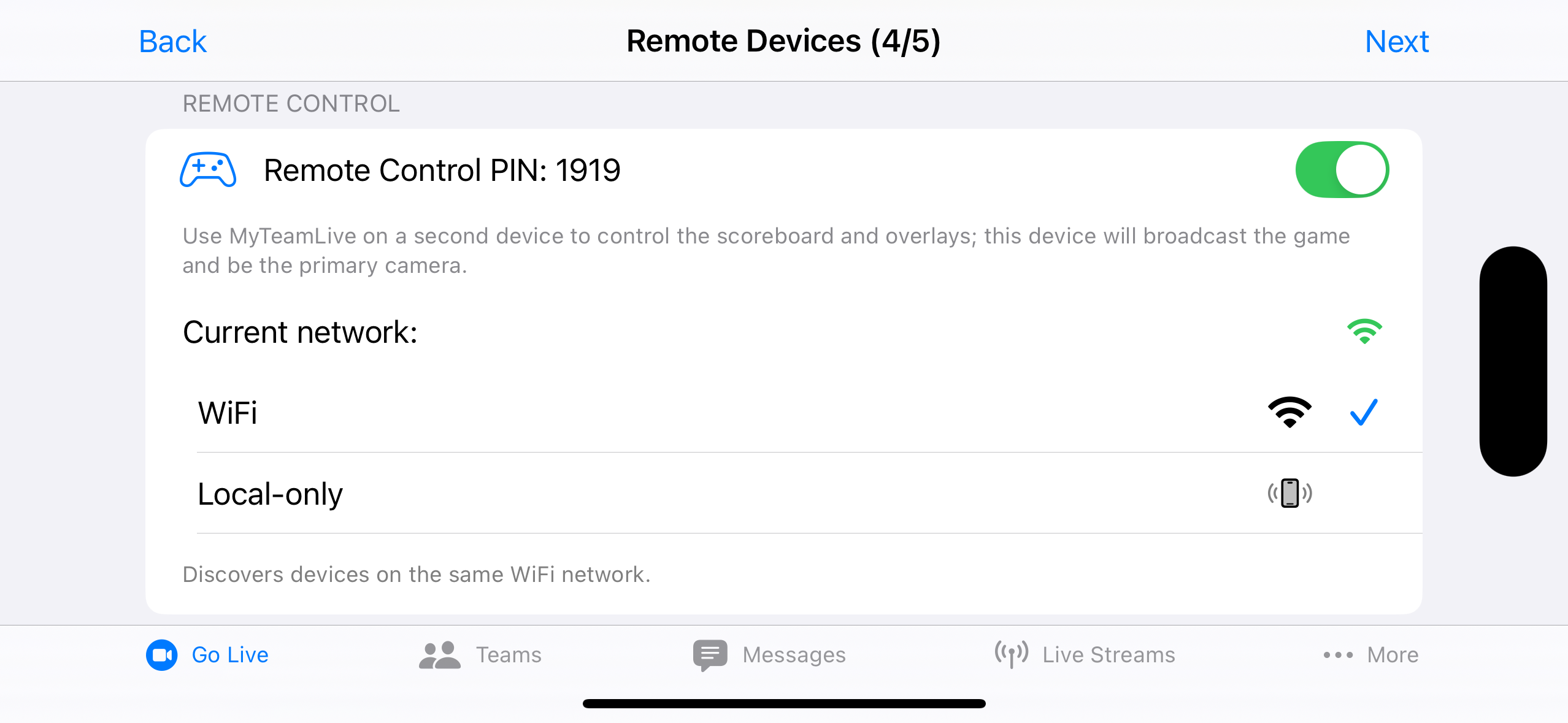
Remote Control: How the Remote Control Connects
Choose the remote control network in the Remote Control section on the Remote Devices step (step 5). The app selects the best option automatically, but you can override it.
WiFi (default when on WiFi)
Both devices discover each other over the local WiFi network using a direct peer connection. No internet connection is required — only that both devices are on the same WiFi network.
Range: as far as WiFi reaches — across the bench, up to the press box, or anywhere else on the same network.
Use when: both devices are on the same WiFi and you need range beyond arm’s reach, or the operator running the scoreboard is in a different part of the facility.
Watch out for: some venues use “client isolation” on their WiFi, which blocks devices from seeing each other even though both are connected. If Browse finds nothing, try the local-only option below.
Local-Only (Bluetooth/Peer)
Uses Apple’s MultipeerConnectivity, which works over Bluetooth and peer-to-peer WiFi without needing a WiFi network at all. Selected automatically when the Broadcaster is on cellular.
Range: roughly 30–50 feet in open air. Walls, equipment, and crowd can reduce this.
Use when: there is no WiFi at the venue, the venue WiFi blocks device-to-device traffic, or the Remote Control operator stays close to the Camera.
Watch out for: the 30–50 foot limit. If the Remote Control operator needs to be in the stands or press box, use WiFi instead. Bluetooth range is affected by physical obstacles and radio interference.
Remote Cameras: How Secondary Cameras Connect
Choose the remote camera network in the Remote Cameras section on the Remote Devices step (step 5). The same WiFi vs. Local options apply as for Remote Control.
See Remote Camera for full setup instructions.
WiFi (default when on WiFi)
Secondary devices discover the broadcaster over the local WiFi network and stream their camera feed directly. No internet connection is required — only that all devices are on the same WiFi network.
Use when: all devices are on the same WiFi and you want the best possible video quality from the secondary camera.
Watch out for: client isolation on venue WiFi. If the secondary device can’t find the broadcaster, switch to Local mode.
Local-Only (Bluetooth/Peer)
Uses Apple’s MultipeerConnectivity over Bluetooth and peer-to-peer WiFi. No WiFi network is needed.
Important: Only MyTeamLive Remote Camera devices can connect with this option.
Range: roughly 30–50 feet in open air.
Use when: there is no WiFi, the venue WiFi blocks device traffic, or the secondary device operator stays close to the broadcaster.