More Tab / Remote Camera
Use Remote Cameras to stream from a different camera angle. The Broadcaster can switch between its own camera or one of the secondary video feeds (Important: audio stays with the broadcaster microphone). Secondary devices can be:
- Another iPhone with MyTeamLive (no subscription required) — uses the Remote Camera screen in the More tab to connect over WiFi or Local network.
- Any RTMP-capable device — such as a GoPro camera or other hardware encoder. Connect over WiFi (only) using the RTMP URL from the Camera Connection list on the Broadcaster.
Broadcaster Setup
Configure Remote Cameras in the Remote Devices step (step 5) of the Go Live flow.
- Enable the Remote Cameras toggle.
- Choose a network: WiFi for range across the venue; Local (Bluetooth/peer) when on cellular or WiFi is unreliable.
- Under Camera Connections, tap Add Camera to configure each camera connection with a name. If Remote Cameras is enabled with no connections added, a warning reminds you to add one before continuing.
- Copy or share the camera RTMP URL using the copy or share icon for that camera.
- Use the camera connection’s RTMP URL with the remote camera device so they can connect. (If the remote camera starts streaming while still on step 5, you will see a preview.)
- When the broadcast starts, available remote cameras appear in the camera switcher along the left side of the screen. If the remote camera is streaming, you will see a preview.
Switching Camera Sources During Broadcast
When Remote Cameras are configured, a column of camera thumbnails appears along the left side of the screen.
- The active camera is shown in the Broadcaster Camera View.
- Tap any Remote Camera thumbnail to switch the broadcast to that camera.
- When a Remote Camera is active, the Broadcaster Camera will appear in the list of thumbnails and can be selected to switch the broadcast.
- A disconnected camera is shown with a slash icon; it can’t be selected until the remote camera connects.
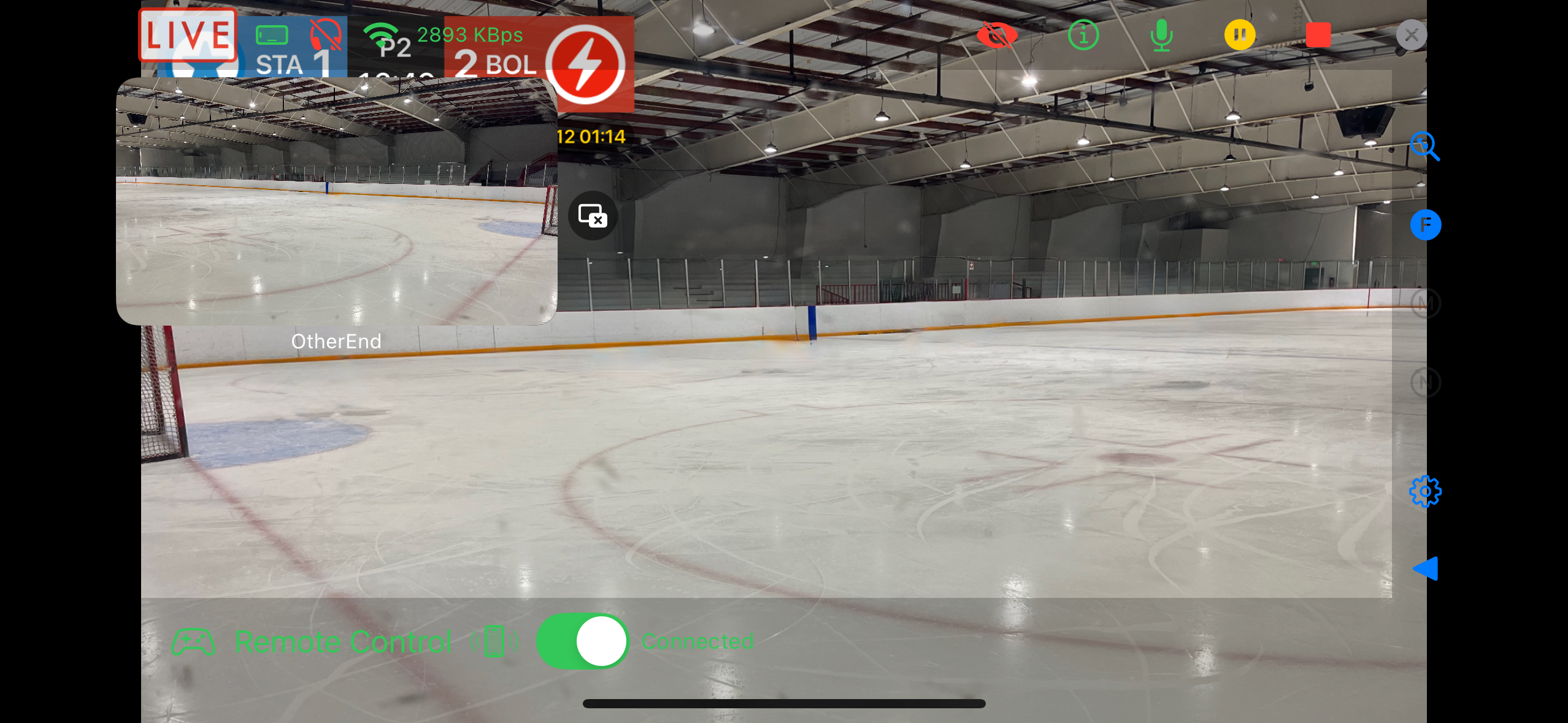
- Tap the PiP icon next to a thumbnail to enlarge that slot to a larger preview (3× size). Tap the PiP icon again to return to the full list of thumbnails.
Remote Camera Setup with MyTeamLive on another iPhone (no subscription required)
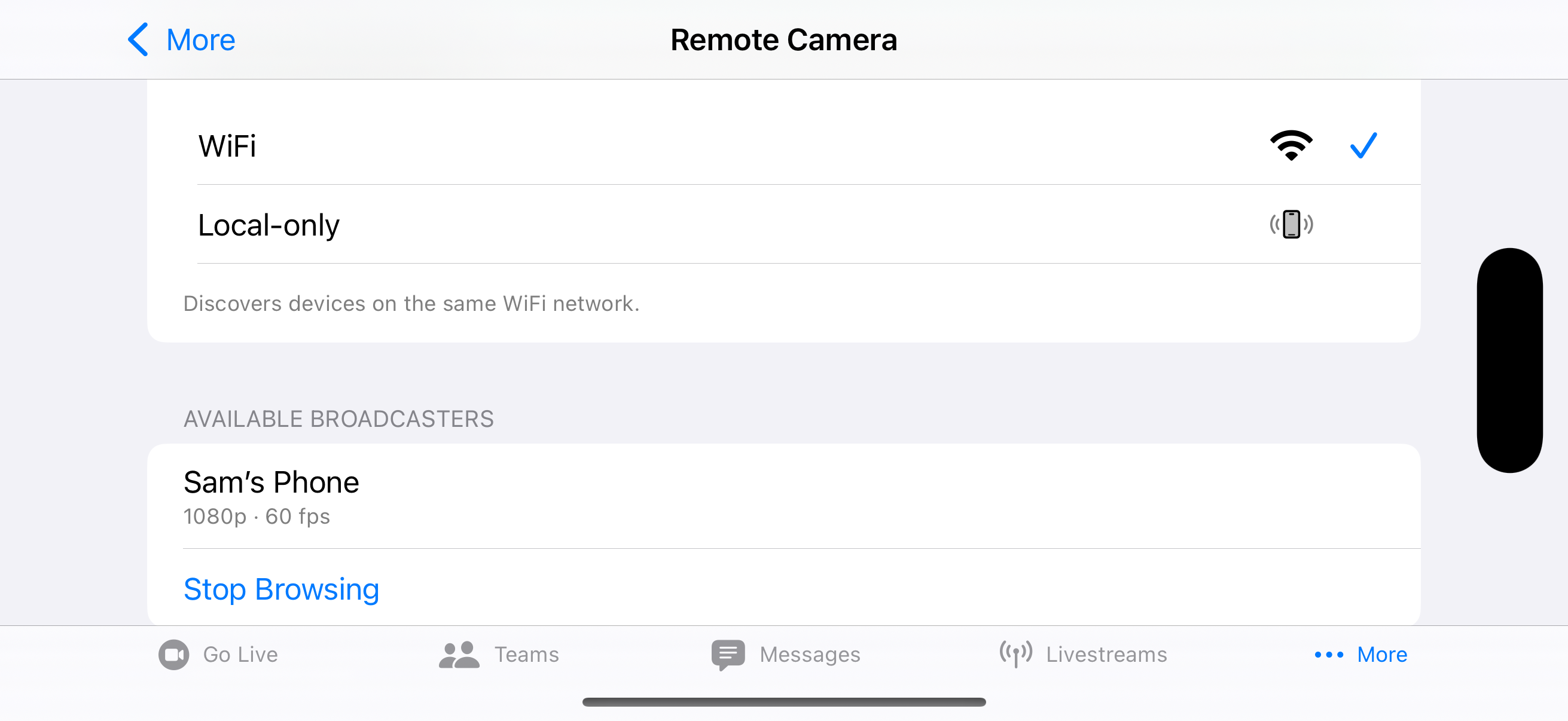
- Open the More tab and choose Remote Camera.
-
Set FPS and Quality to what you want to send. This will default to the Broadcaster settings.
An orientation indicator shows whether the device is in Landscape (recommended) or Portrait.
- Choose the same network type (WiFi or Local) as the broadcaster.
- Tap Browse to find the broadcaster on the network.
- Select the broadcaster from the list.
- Select the camera connection to use with this device.
- Tap Send video as camera [name] to open the Remote Camera View.
- Tap the play icon in the control bar to begin streaming to the Broadcaster. The livestream will show with the connection name on the Broadcaster.
Remote Camera Setup with a RTMP Device
Any device that can stream RTMP — such as a GoPro camera — can be used as a remote camera without needing the MyTeamLive app.
- On the Broadcaster, enable Remote Cameras and add a camera connection.
- Copy or share the camera connection RTMP URL using the copy or share icon.
- Enter that RTMP URL into the RTMP settings on your device (e.g. GoPro Quik livestream settings).
- Start streaming on the device. The livestream will show with the connection name on the Broadcaster.
MyTeamLive Remote Camera Live View
MyTeamLive when used as a Remote Camera shows a full-screen live view with its own control bar and zoom controls.
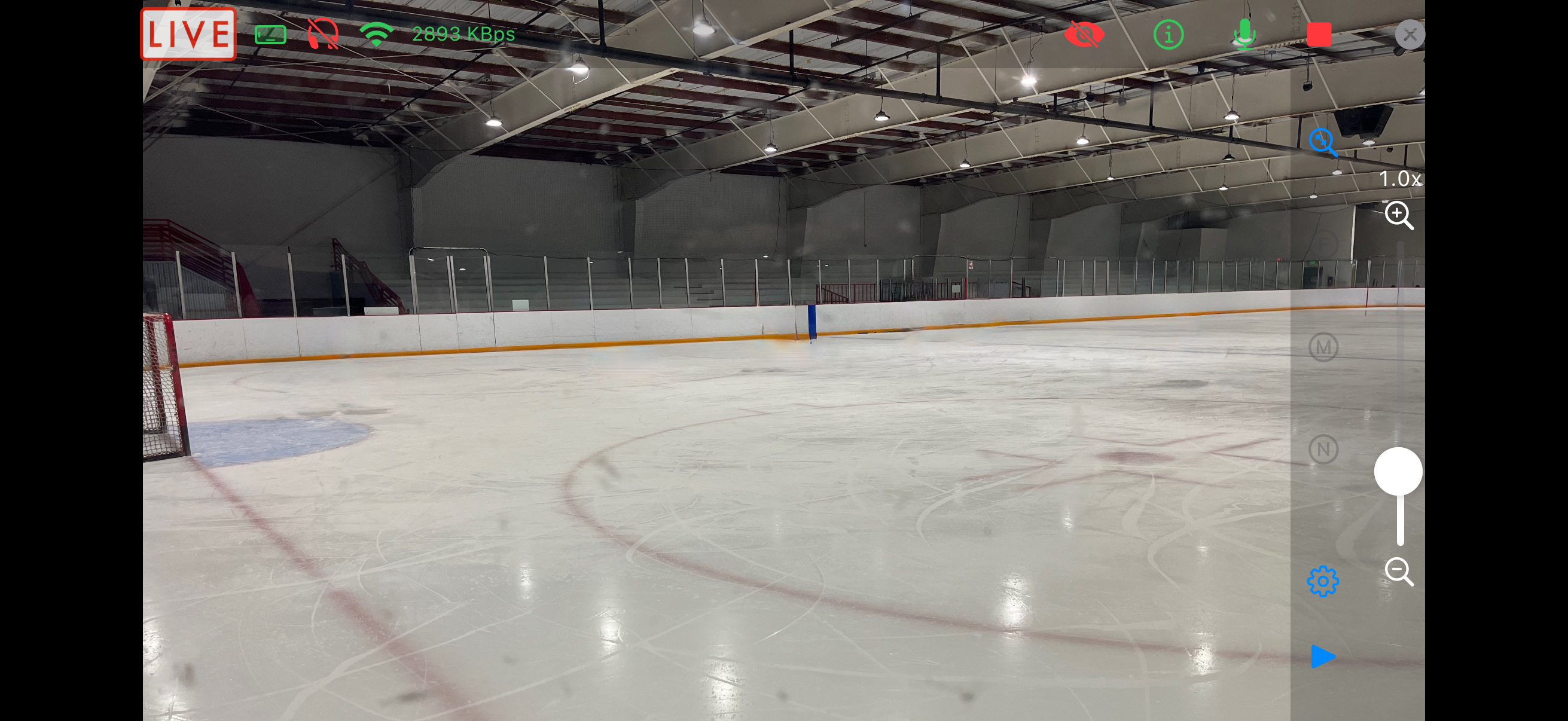
- Use the control bar to start, pause, and stop sending video.
- Zoom and focus work the same as on the primary device.
- Tap the info icon to see stream diagnostics (bitrate, RTMP URL, connection state).
- If the connection to the broadcaster is lost, a dialog lets you reconnect and continue, or close the camera.
Tips
- Keep both devices on the same WiFi network for best results. Use Local-only mode when WiFi is unavailable or unreliable.
- Add camera connections on the Broadcaster before secondary devices try to connect.
- The RTMP URL shown under Camera Connections can be copied or shared directly to the secondary device.
- RTMP devices like GoPro cameras connect over WiFi; they cannot use the Local-only mode.
- You do not need a subscription to use MyTeamLive as a remote camera.
Easy setup for GoPro (or similar)
Using an iPhone with MyTeamLive (no subscription required) to configure the GoPro or similar:
- Start the MyTeamLive remote camera
- Browse for the broadcaster
- Select the camera connection
- Copy the RTMP URL
- Open the GoPro Quik app
- Configure the GoPro livestream by pasting the copied RTMP URL
Use a device without MyTeamLive to configure the GoPro or similar:
- Copy the RTMP URL in the Broadcaster Remote Devices setup screen (step 5).
- Share the RTMP URL (via messages or email or similar) to the configuring device.
- Open the GoPro Quik app
- Configure the GoPro livestream by pasting the shared RTMP URL