Instant Replay
Instant Replay lets you mark a clip of the last few seconds of action and play it back over the live broadcast, without interrupting the stream. The live feed keeps recording underneath, so you can return to it the moment playback ends.
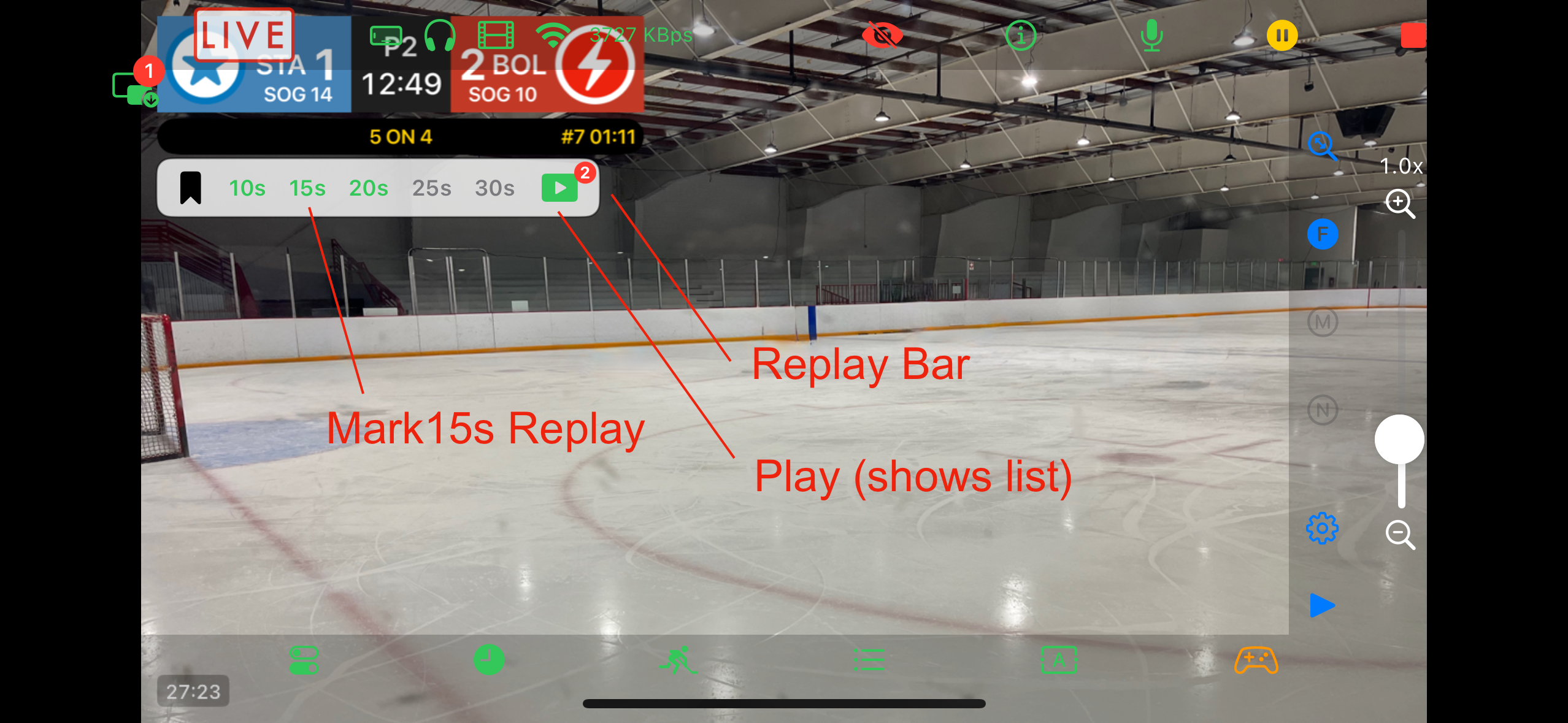
Basics
- Turn on Replay Enabled in the Go Live Controls step or the Control Options Panel. The option is on by default.
- In the Replay Bar, tap the numeric icon to mark a replay of the buffered action.
-
Tap the play icon, badged with your saved count, to open the replay list.
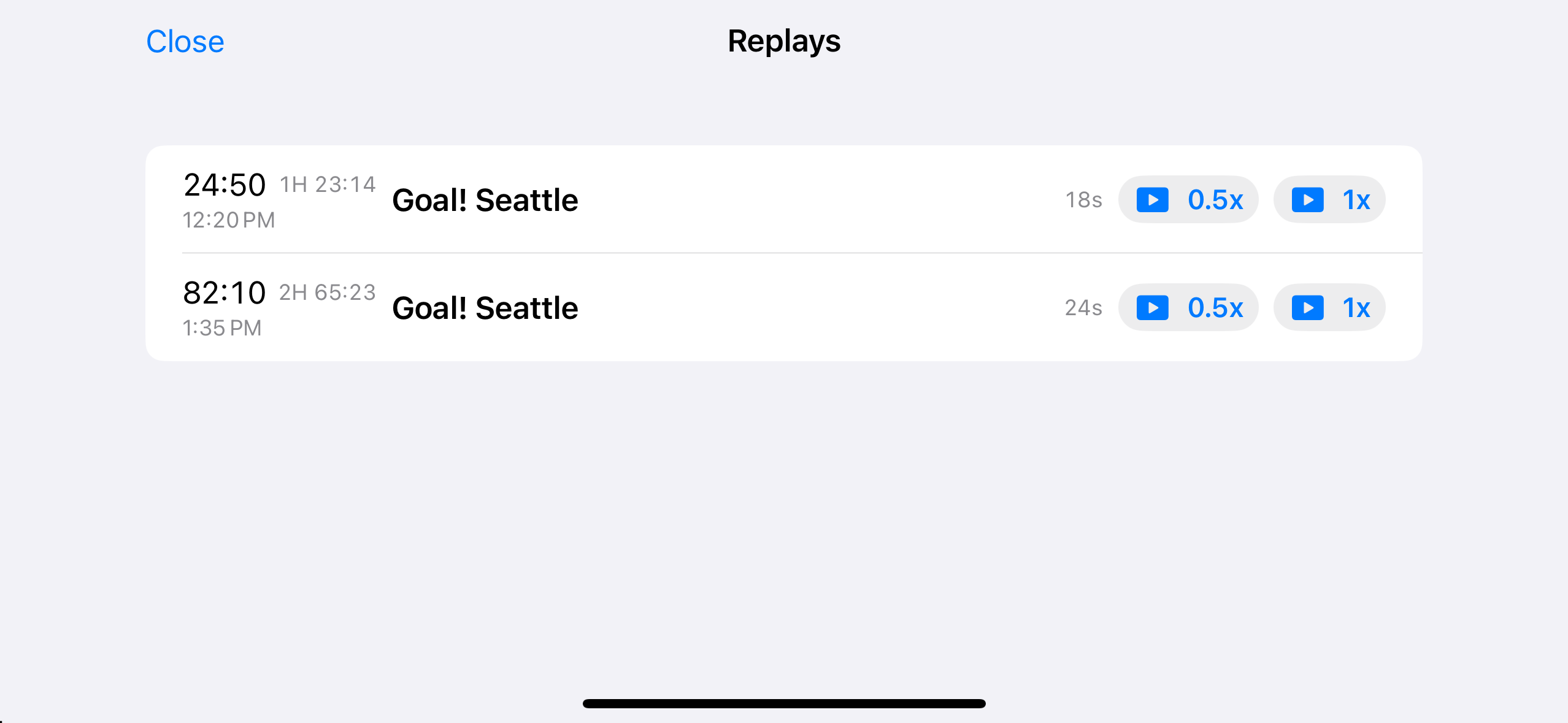
- Tap 1x to play a replay at normal speed or 0.5x to play it at half speed. Swipe to delete.
Each replay in the list shows when it was marked, the game clock and period, the event tag if there is one, and the clip length.
The mark and play buttons stay disabled until at least a few seconds of action are buffered.
Basic vs. Advanced Mode
- Basic — one mark icon captures everything currently buffered, up to the Basic Replay Length you’ve set (10s/15s/20s/25s/30s).
- Advanced — a row of duration icons (10s/15s/20s/25s/30s) lets you mark exactly that many seconds. Each icon only enables once there’s enough new footage buffered past the option before it, and the buffer always keeps a full 30 seconds of action available in this mode.
Settings
Find these in the Go Live Controls step or the Control Options Panel’s Replay section:
- Replay Enabled — turns the whole feature on or off.
- Replay Mode — (Basic / Advanced) Basic has a single capture length, Advanced gives you multiple lengths.
- Basic Replay Length — how much the mark button captures in Basic mode. Can be changed mid-broadcast: increasing it takes effect immediately, decreasing it does not shrink what’s already buffered.
- Require Clock Running — replay only buffers while the game clock is running (clock must be enabled). Turn it off to have replay always buffer regardless of the clock — use caution and avoid replays of after whistle action.
While a Replay Plays
- A red REPLAY badge appears top-center, aligned with the scorebug.
- The live sign switches to REPLAY.
- The scorebug, clock, and other overlays keep updating normally over the replay.
- Marking and playing another replay is disabled until the current one finishes.
Tips
- Tapping an Events Panel graphic within 30 seconds of a mark, either before or after, tags that replay with the event.
- The replay list is limited to the last 10 replays; marking an 11th removes the oldest. The replays are not saved after the broadcast is finished.
- If the device gets too hot, replay buffering pauses automatically until it cools down — watch for the thermal warning icon in the Control Bar.