Controls Options Panel and Go Live Step (6/7)
Adjust setting for displaying controls and graphics on the broadcast such as the mute indicator and the recording timer. These can be set as part of the Go Live steps or by opening the Controls panel in the Broadcaster later.
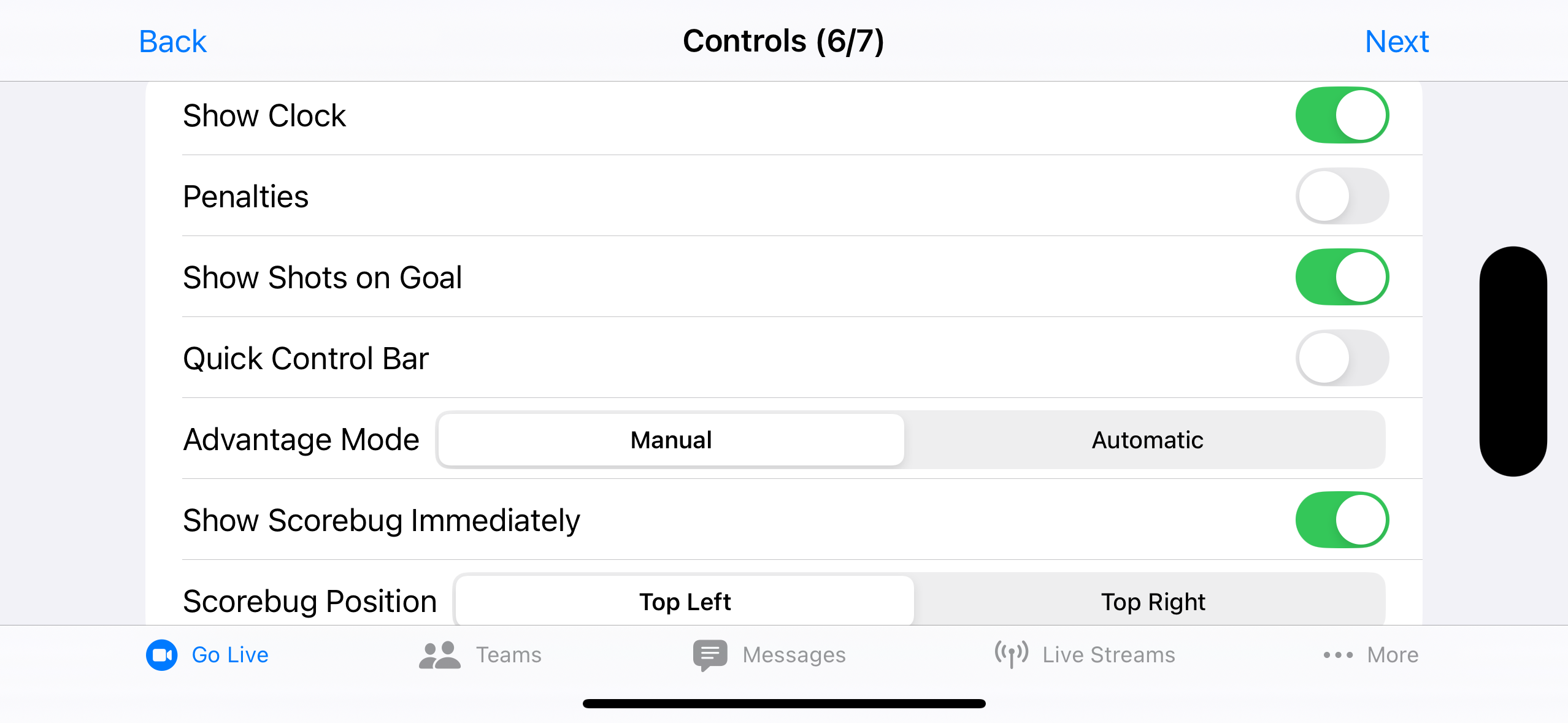
Scorebug
- Show Scorebug shows or hides the scorebug (only in Control Options Panel)
- Show Scorebug Immediately scorebug starts shown (only in Go Live step)
- Scorebug Position scorebug in Top Left or Top Right
Hockey Specific
- Show Clock
- Penalties disabled unless Show Clock is on
- Show Shots on Goal
- Quick Control Bar
- Advantage Mode (Manual / Automatic)
Advantage Mode controls the on-ice strength on the scorebug. Automatic updates on-ice strength when penalties are entered. Manual shows a picker for the on-ice strength.
Soccer Specific
- Quick Control Bar
Recording Timer
- Mode sets the elapsed recording timer mode: Off, Broadcaster (visible only on your screen), or On Stream (visible to your audience)
- Position Timer in Bottom Left or Bottom Right
Position is disabled when Mode is Off. The position cannot be the same as the Brand position.
Brands
- Position Brand in Bottom Left or Bottom Right
Disabled when no Brand image is configured. The position cannot be the same as the Recording Timer position.
Learn how to configure a Brand in the Messages Tab.
Muted Overlay
- Size sets the muted icon size: None, Small, or Large.
- Position sets where a Small icon appears: Centered, Top Left, or Top Right. Position is disabled when Size is None or Large (Large is always centered).