Broadcaster Camera View

The Broadcaster Camera View combines the live stream preview with the on screen controls and remote cameras.
Preview
The live stream preview shows exactly what the audience sees, including the ScoreBug, celly stickers, messages, and the stream brand.
All on-screen controls are only visible on your screen.
Audio
Audio uses a wired or Bluetooth headset when connected; otherwise it uses the built-in microphone. The built-in microphone picks up a lot of ambient noise. The best results overall come from a wired setup.
The mute button will show a large and centered muted icon on the stream by default. Other options available are no icon at all (not recommended) or a smaller icon in the top right.
Control Bar
Use the top control bar to start or pause publishing, mute audio, stop, and monitor stream state. Learn more in the Control Bar guide.
Quick Control Bar
Use the Hockey Quick Control Bar to start and stop the clock and clear penalties without opening the full clock panel.
Zoom Tools
Open the Zoom slider on the right edge to adjust magnification. Preset buttons let you jump between near, medium, and far framing.
Control Panels
Open panels along the bottom edge to manage:
- Clock, sport-specific clock controls (Clock Panel)
- Scoreboard, including sport-specific states (Scoreboard Panel)
- Custom messages and Celly Stickers (Messages Panel)
- Sport-specific event prompts (Events Panel)
Camera Sources
When Remote Cameras are configured, a column of camera thumbnails appears next to the Quick Control Bar. Tap a thumbnail to switch the broadcast to that camera. The active source fills the main preview; the column shows all other available slots.
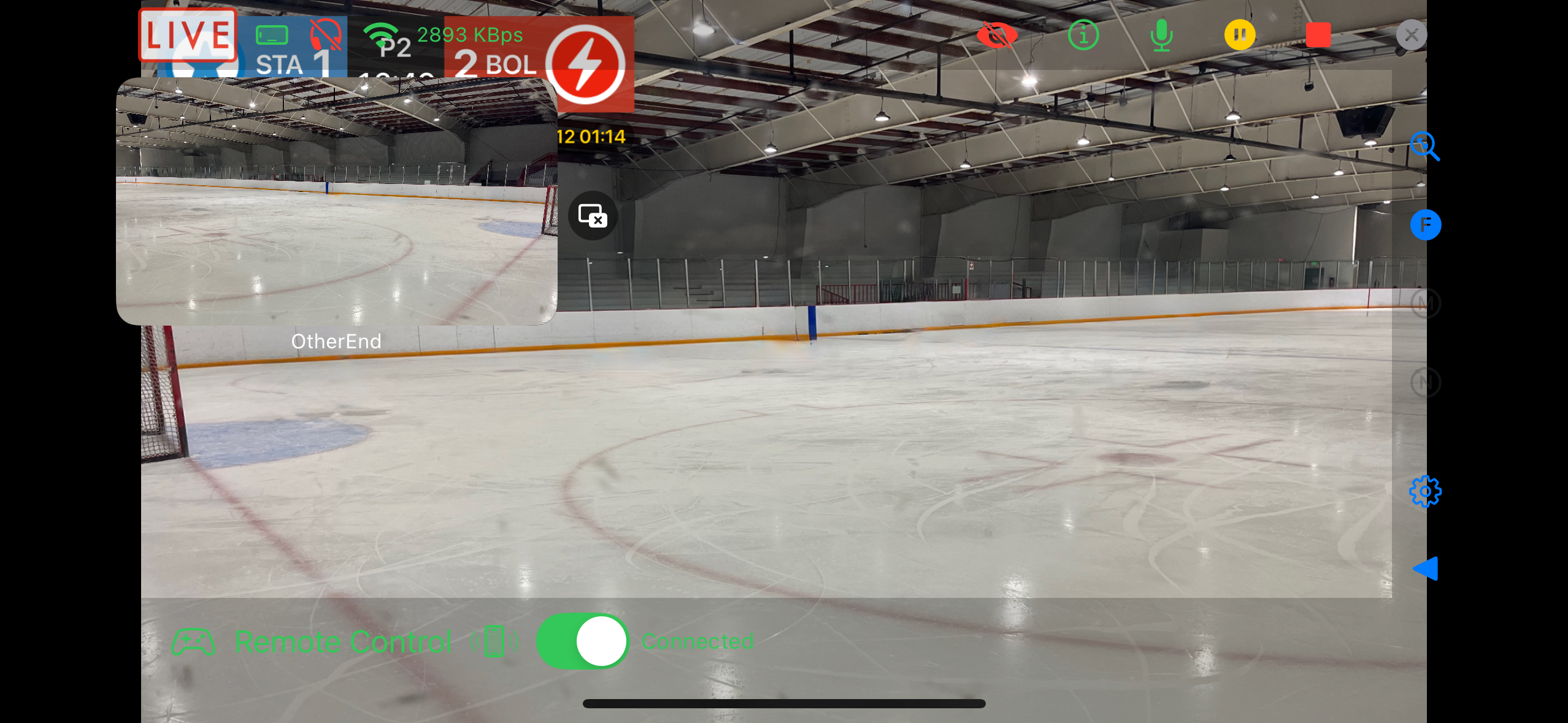
Tap the expand icon next to a thumbnail to enlarge that slot to a full-column preview (3× size). A disconnected slot is shown with a slash icon and can’t be selected until the device connects.
Remote Control
When Remote Control is connected, toggle the Remote Control switch if you need to reclaim control.